MADAR Networkدليل برنامج العقدة
ويندوز 10 و 11

دليل برنامج عقدة مدار

من التحميل إلى آخر خطوة، مع شرح الإعدادات الأساسية. الصور في هذه الصفحة من شاشات البرنامج نفسه، والاسم والبريد فيها للمثال فقط.

خفيف على جهازك ولا يعطل عملك

صُمم البرنامج ليعمل بهدوء بجانب برامجك وألعابك، دون أن تشعر به.

أولوية منخفضةيقدّم ويندوز برامجك عليه دائما، فلا يبطئ ما تعمل عليه.
نصف المعالج كحد أقصىيستخدم نصف أنوية المعالج على الأكثر (وأربع أنوية كحد أعلى)، ويبقى الباقي لك.
بلا نوافذ مزعجةيعمل في الخلفية بصمت، وتجد أيقونته الصغيرة بجانب الساعة.
وضع التوفيريتوقف مؤقتا عند العمل على البطارية أو على اتصال محدود البيانات، إن فعّلته.
بلا صلاحيات مديرلا يطلب صلاحيات المدير عند التثبيت، ولا يحتاج فتح منافذ في الراوتر.
بياناتك محفوظةالإيقاف والتحديث لا يمسحان شيئا. حسابك وبياناتك تبقى كما هي.

1التحميل

  1. افتح صفحة التحميل في موقع مدار.
  2. اضغط التحميل لويندوز. يُحفظ ملف التثبيت في مجلد التنزيلات.
صفحة التحميل

2التثبيت

  1. افتح الملف الذي نزّلته (يبدأ اسمه بـ MADAR-Setup).
  2. إن ظهرت نافذة ويندوز الزرقاء «حماية Windows لجهاز الكمبيوتر»، اضغط مزيد من المعلومات ثم تشغيل على أي حال. تظهر هذه النافذة مع البرامج الجديدة على ويندوز.
  3. تظهر رسالة «تم تثبيت مدار». اضغط موافق.
  4. يظهر اختصار MADAR Network على سطح المكتب، وتُفتح نافذة البرنامج تلقائيا.

التثبيت لا يحتاج صلاحيات المدير، ويُثبَّت البرنامج داخل حسابك في ويندوز فقط.

3شاشة الترحيب

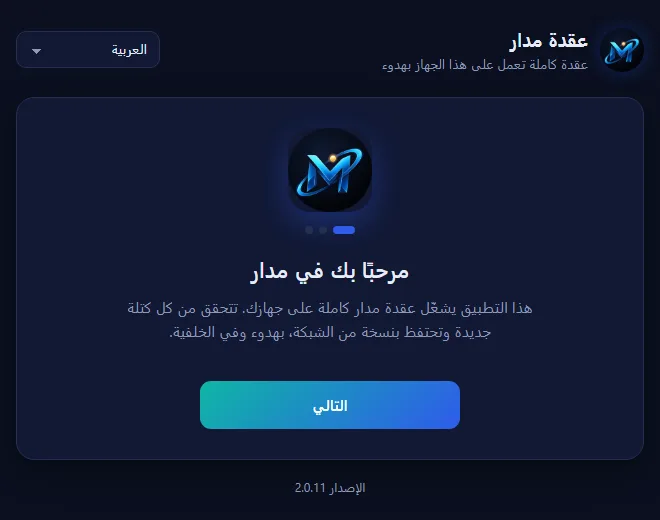
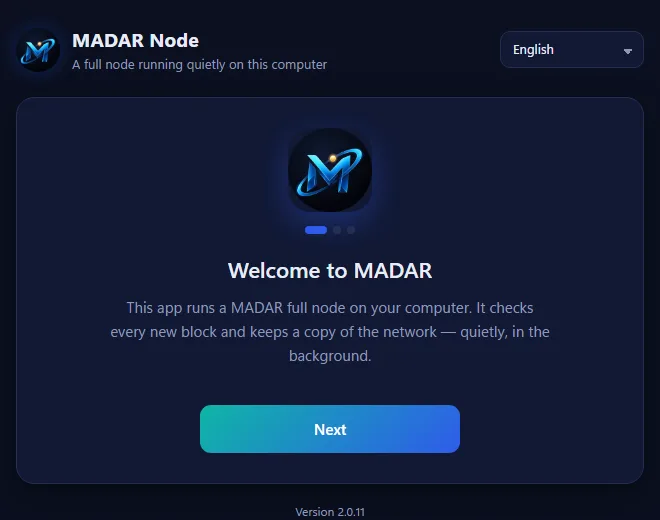
عند أول تشغيل تظهر ثلاث شاشات قصيرة تعرّفك بالبرنامج.

  1. اقرأ الشاشة واضغط التالي.
  2. في الشاشة الثالثة اضغط ابدأ.
شاشة الترحيب في برنامج عقدة مدار
شاشة الترحيب

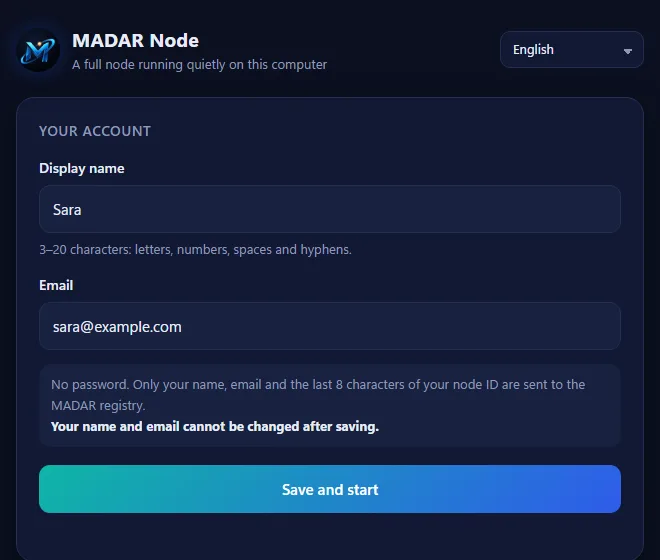
4إنشاء الحساب

  1. اكتب اسم الظهور: من 3 إلى 20 خانة، حروف وأرقام ومسافات وشرطات.
  2. اكتب بريدك الإلكتروني.
  3. اضغط احفظ وشغّل، ثم وافق على رسالة التأكيد.

لا توجد كلمة سر. الاسم والبريد لا يمكن تعديلهما بعد الحفظ، فتأكد منهما قبل الضغط.
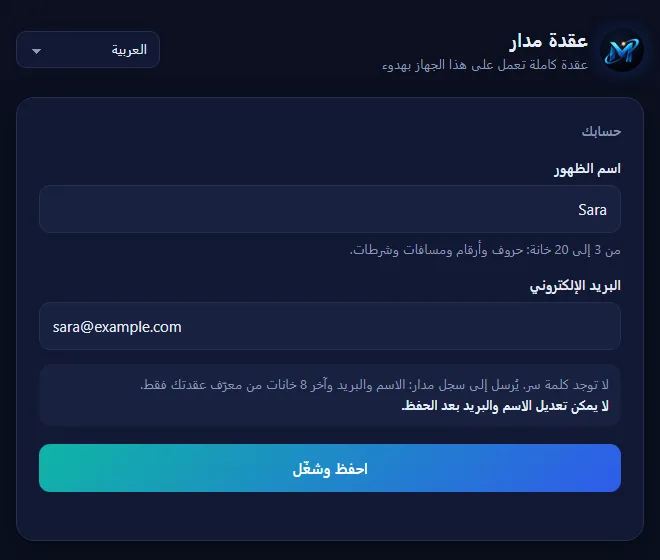
نموذج إنشاء الحساب
نموذج الحساب (الاسم والبريد للمثال)

5اللحاق بالشبكة ثم التشغيل

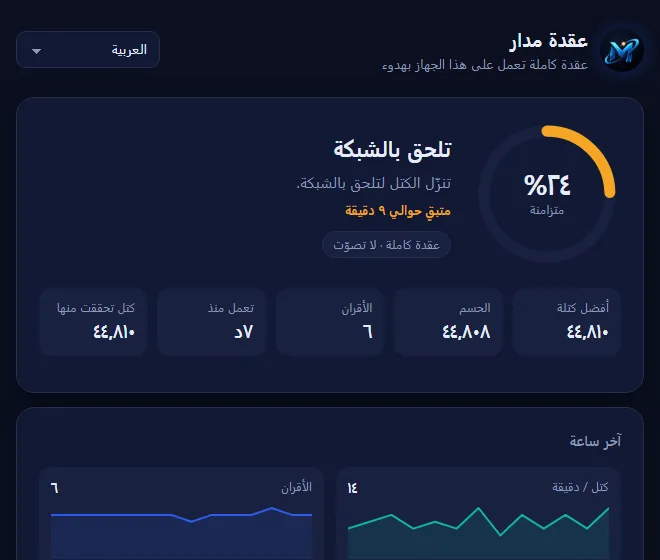
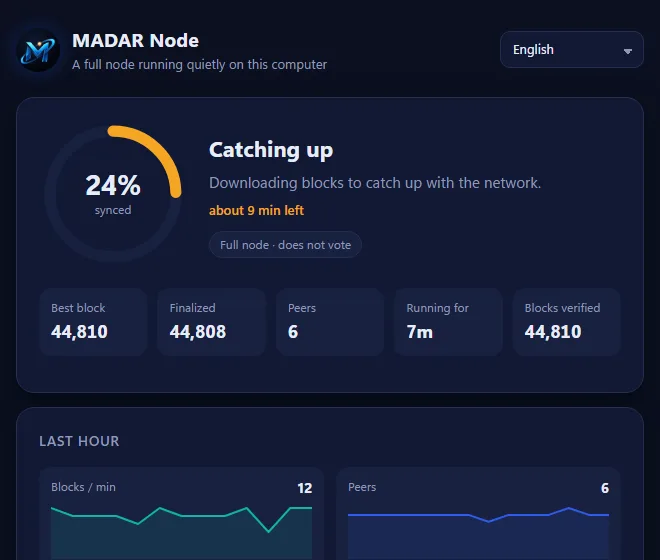
بعد الحفظ تبدأ العقدة بتنزيل الكتل لتلحق بالشبكة. تظهر «تلحق بالشبكة» مع نسبة التقدم والوقت المتبقي التقريبي. يحدث هذا مرة واحدة في البداية، ويمكنك استخدام جهازك بشكل طبيعي أثناءه.

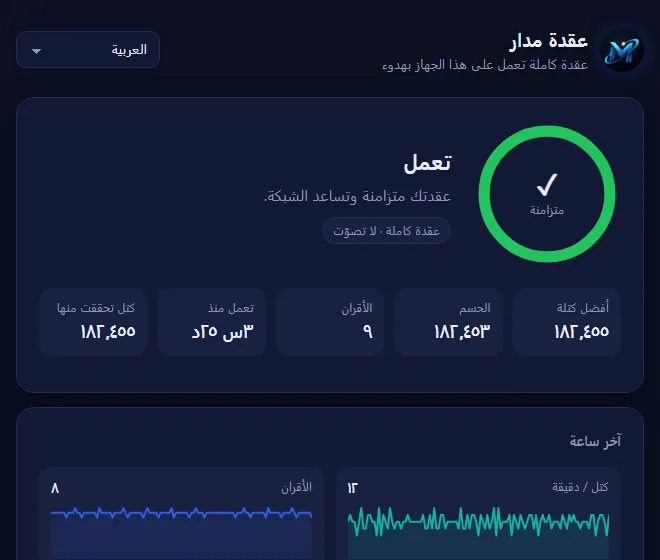
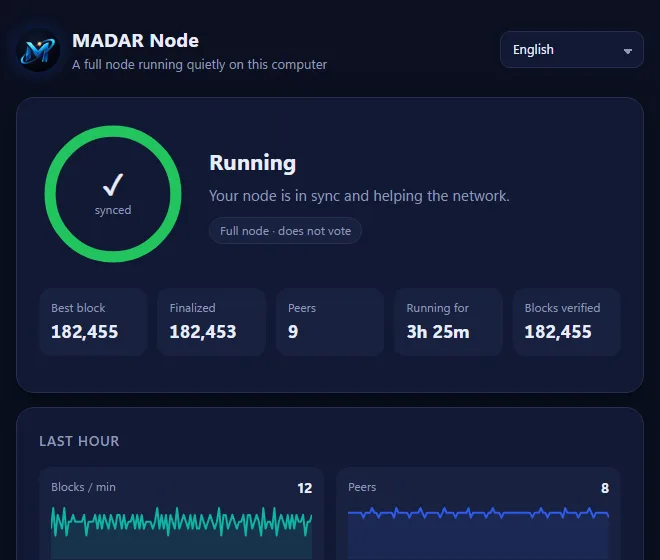
عند الانتهاء تظهر علامة ✓ وكلمة «تعمل»: عقدتك متزامنة وتساعد الشبكة.

  • أفضل كتلة والحسم: آخر كتلة وصلت إليها عقدتك، وآخر كتلة اعتُمدت نهائيا.
  • الأقران: عدد العقد التي تتصل بها عقدتك الآن.
  • تعمل منذ: مدة التشغيل الحالية.
العقدة تلحق بالشبكة
أثناء اللحاق بالشبكة
العقدة تعمل ومتزامنة
العقدة تعمل

6الإعدادات

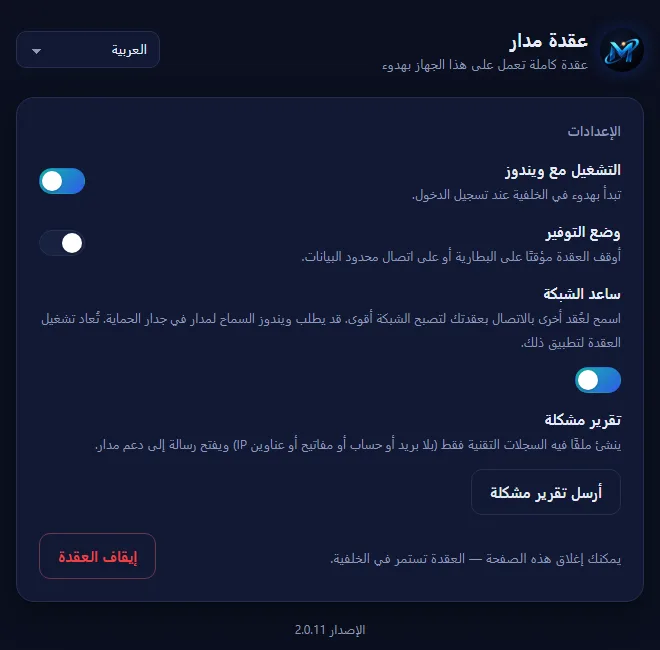
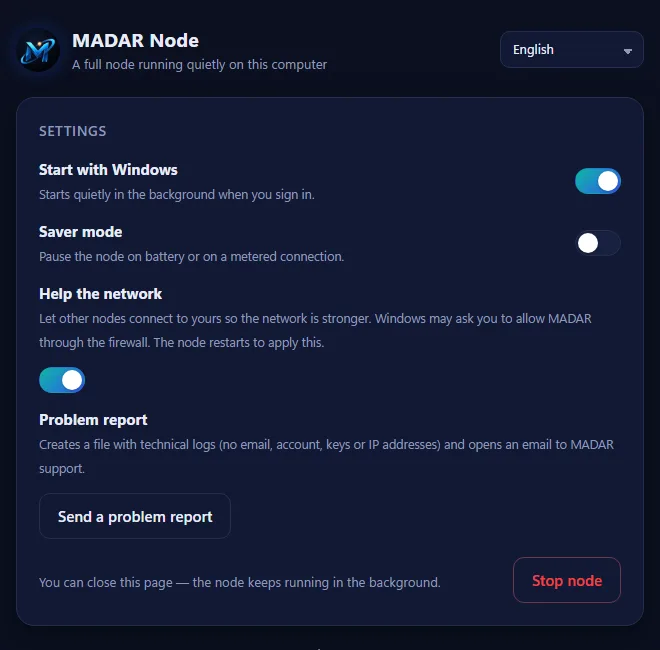
انزل إلى أسفل نافذة البرنامج لتجد بطاقة الإعدادات:

  • التشغيل مع ويندوز: عند تفعيله تبدأ العقدة بهدوء في الخلفية كلما شغّلت جهازك. ننصح بإبقائه مفعّلا.
  • وضع التوفير: يوقف العقدة مؤقتا عند العمل على البطارية أو على اتصال محدود البيانات، وتعود وحدها بعد ذلك. مناسب لأجهزة اللابتوب.
  • ساعد الشبكة: يسمح لعقد أخرى بالاتصال بعقدتك لتصبح الشبكة أقوى. قد يسألك ويندوز عن السماح لمدار في جدار الحماية: اضغط السماح.
  • أرسل تقرير مشكلة: ينشئ ملفا فيه السجلات التقنية فقط، ويفتح رسالة إلى دعم مدار. أرفق الملف بالرسالة ثم أرسلها.
  • إيقاف العقدة: انظر الخطوة 8.
بطاقة الإعدادات
بطاقة الإعدادات

7العمل في الخلفية

  1. بعد التشغيل يمكنك إغلاق نافذة البرنامج بزر ✕. العقدة تستمر في العمل في الخلفية.
  2. تجد أيقونة مدار الصغيرة في شريط المهام بجانب الساعة. إن لم تظهر، اضغط السهم ^ بجانب الساعة.
  3. نقرة واحدة على الأيقونة تفتح نافذة البرنامج من جديد.
  4. الزر الأيمن على الأيقونة يعرض قائمة فيها افتح مدار وأوقف العقدة.
  5. لتعمل العقدة تلقائيا كل مرة تشغّل فيها جهازك، أبقِ التشغيل مع ويندوز مفعّلا.

^10:30
شكل توضيحي: أيقونة مدار بجانب الساعة وقائمتها

8إيقاف العقدة عند الحاجة

إن احتجت جهازك بالكامل لأي سبب، أوقف العقدة بإحدى طريقتين:

  1. من نافذة البرنامج: اضغط إيقاف العقدة أسفل الإعدادات، ثم وافق على رسالة التأكيد.
  2. أو من الأيقونة بجانب الساعة: الزر الأيمن ثم أوقف العقدة.

لإعادة التشغيل: افتح اختصار MADAR Network من سطح المكتب.

لمنع تشغيلها مع ويندوز: أطفئ خيار التشغيل مع ويندوز في الإعدادات.

الإيقاف لا يمسح حسابك ولا بياناتك. وعند إعادة التشغيل تكمل العقدة من حيث توقفت.

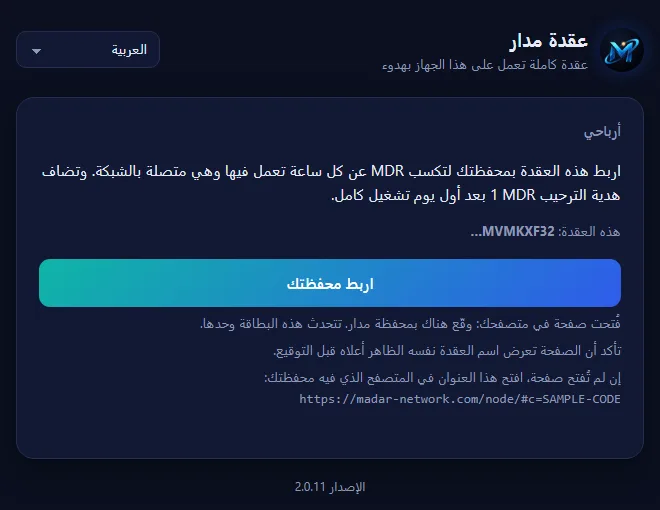
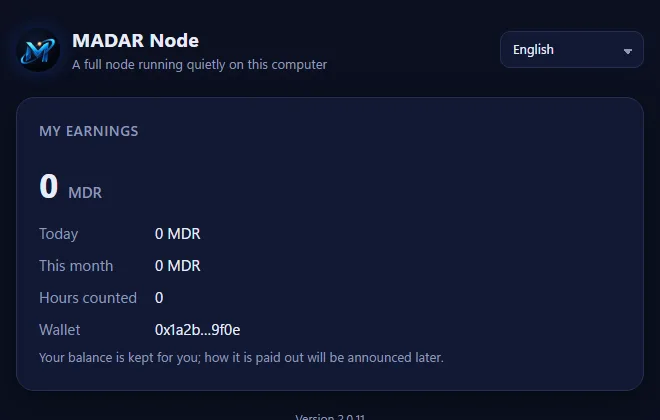
9أرباحي: ربط العقدة بمحفظة مدار

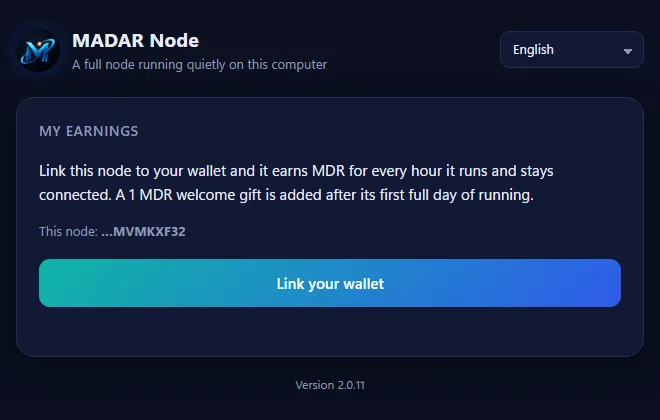
بطاقة أرباحي تسجّل ساعات تشغيل عقدتك باسم محفظتك. يتم الربط بمحفظة مدار فقط.

  1. ثبّت محفظة مدار من متجر كروم وأنشئ محفظتك، إن لم تكن لديك.
  2. في برنامج العقدة اضغط اربط محفظتك. تُفتح صفحة الربط في متصفحك.
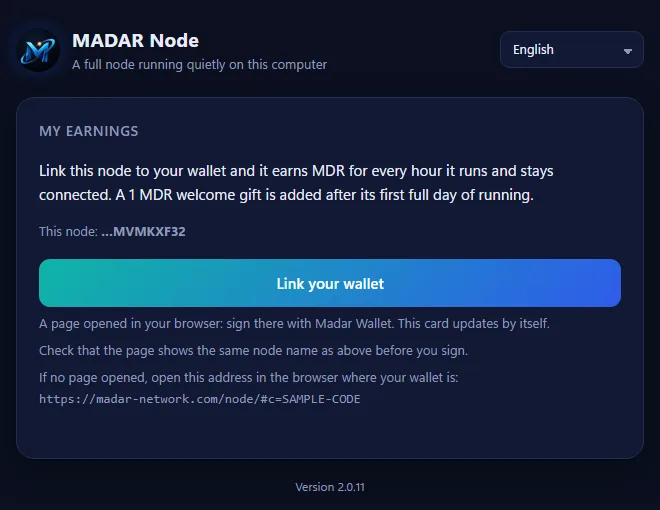
  3. تأكد أن اسم العقدة في الصفحة هو نفسه الظاهر في البرنامج.
  4. اضغط وقّع بمحفظة مدار، ثم وافق في نافذة المحفظة. التوقيع لا يحرّك أي أموال.
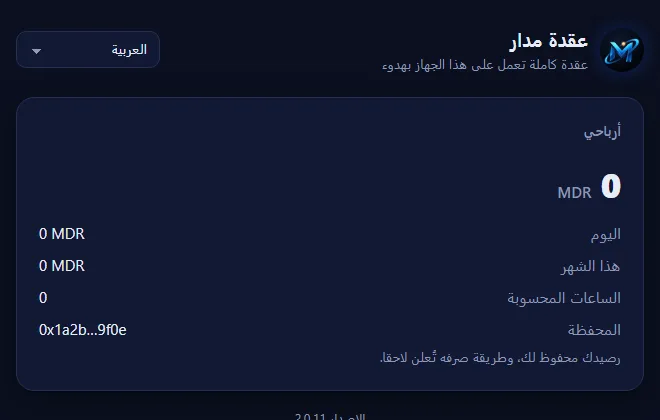
  5. ارجع إلى برنامج العقدة: تتحدث البطاقة وحدها وتعرض رصيدك.

الرصيد محفوظ لمحفظتك، وطريقة صرفه تُعلن لاحقا. عقدة واحدة لكل محفظة.
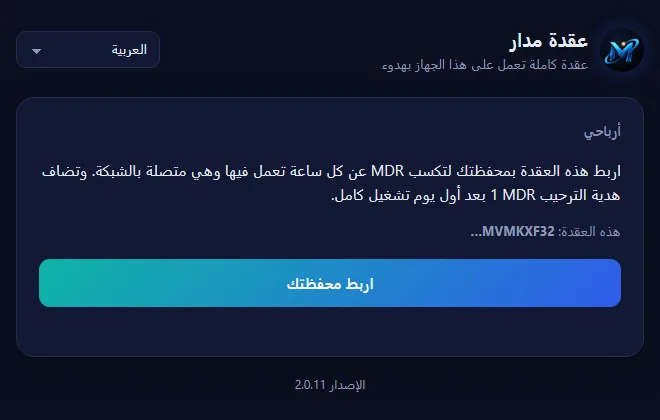
بطاقة أرباحي قبل الربط
قبل الربط
بانتظار التوقيع في المتصفح
بعد الضغط: وقّع في الصفحة التي فُتحت
العقدة مربوطة بالمحفظة
بعد الربط

10التحديثات

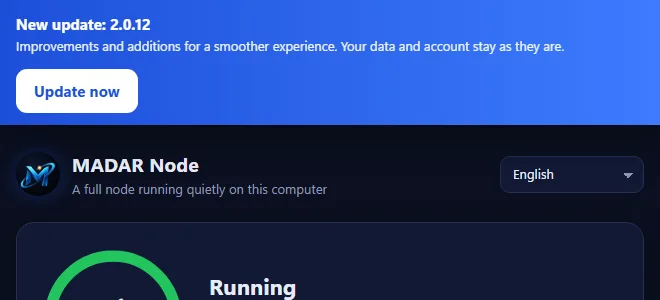
عند صدور نسخة جديدة يظهر شريط «تحديث جديد» أعلى نافذة البرنامج.

  1. اضغط حدّث الآن.
  2. ينزّل البرنامج التحديث ويتحقق منه ثم يثبّته، وتعود النافذة بعد قليل.

حسابك وبياناتك يبقيان كما هما بعد التحديث.
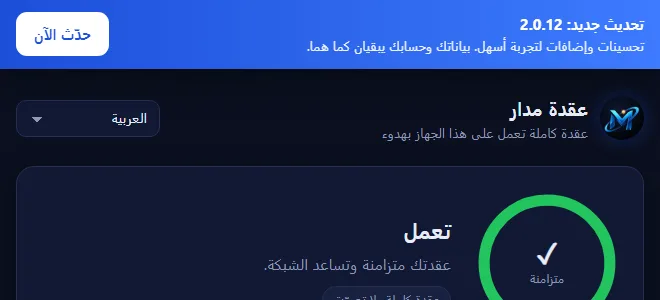
شريط التحديث الجديد
شريط التحديث

أسئلة شائعة

ظهرت كلمة «منقطعة»، ماذا أفعل؟
تأكد من اتصال الإنترنت. إن استمرت، أوقف العقدة ثم شغّلها من جديد. لا تحتاج فتح منافذ في الراوتر.
هل أحتاج ترك النافذة مفتوحة؟
لا. أغلقها متى شئت، والعقدة تستمر في الخلفية.
هل يؤثر البرنامج على الألعاب أو العمل؟
يعمل بأولوية منخفضة ويستخدم جزءا من المعالج فقط، فيبقى جهازك سريعا. وإن احتجت الجهاز بالكامل، أوقف العقدة كما في الخطوة 8.
كيف أتواصل مع الدعم؟
استخدم زر أرسل تقرير مشكلة في الإعدادات، أو راسلنا على contact@madar-network.com.
Windows 10 and 11

MADAR Node app guide

From download to the last step, with the basic settings explained. The pictures on this page are the app's own screens; the name and email in them are only an example.

Light on your PC, out of your way

The app is built to run quietly next to your programs and games, without you noticing it.

Low priorityWindows always puts your programs first, so it does not slow down what you are doing.
Half the processor at mostIt uses at most half of your processor cores (four at the most); the rest stay yours.
No pop-up windowsIt runs silently in the background, with a small icon next to the clock.
Saver modeIf you turn it on, the node pauses on battery or on a metered connection.
No administrator rightsInstalling needs no administrator rights, and no router ports need to be opened.
Your data staysStopping and updating erase nothing. Your account and data stay as they are.

1Download

  1. Open the download section of the MADAR website.
  2. Press Download for Windows. The installer is saved to your Downloads folder.
Download page

2Install

  1. Open the file you downloaded (its name starts with MADAR-Setup).
  2. If the blue Windows window "Windows protected your PC" appears, press More info, then Run anyway. Windows shows this for programs that are new to it.
  3. A message says MADAR is installed. Press OK.
  4. A MADAR Network shortcut appears on your desktop and the app window opens by itself.

Installing needs no administrator rights; the app is installed inside your own Windows account only.

3Welcome screens

On the first run, three short screens introduce the app.

  1. Read each screen and press Next.
  2. On the third screen press Get started.
MADAR node app welcome screen
Welcome screen

4Create your account

  1. Type a display name: 3 to 20 characters, letters, numbers, spaces and dashes.
  2. Type your email.
  3. Press Save and start, then confirm.

There is no password. The name and email cannot be changed after saving, so check them first.

Account form
Account form (example name and email)

5Catching up, then running

After saving, the node downloads blocks to catch up with the network. It shows "Catching up" with the progress and an estimated time left. This happens once at the start, and you can use your computer normally meanwhile.

When it is done you see a ✓ and "Running": your node is in sync and helping the network.

  • Best block and Finalized: the latest block your node has, and the latest block that is final.
  • Peers: how many nodes yours is connected to now.
  • Running for: how long it has been running.
The node catching up
Catching up with the network
The node running and in sync
The node is running

6Settings

Scroll down in the app window to the Settings card:

  • Start with Windows: the node starts quietly in the background whenever you sign in. We recommend keeping it on.
  • Saver mode: pauses the node on battery or on a metered connection, and resumes by itself afterwards. Good for laptops.
  • Help the network: lets other nodes connect to yours so the network is stronger. Windows may ask you to allow MADAR through the firewall: press Allow.
  • Send a problem report: creates a file with technical logs only and opens an email to MADAR support. Attach the file and send it.
  • Stop node: see step 8.
Settings card
Settings card

7Running in the background

  1. Once it is running you can close the app window with ✕. The node keeps running in the background.
  2. The small MADAR icon sits in the taskbar next to the clock. If you do not see it, press the ^ arrow next to the clock.
  3. One click on the icon opens the app window again.
  4. Right-click the icon for a menu with Open MADAR and Stop node.
  5. To have the node start every time you turn on your computer, keep Start with Windows on.
^10:30
Illustration: the MADAR icon next to the clock and its menu

8Stopping the node when you need to

If you need your whole computer for any reason, stop the node in one of two ways:

  1. In the app window: press Stop node under Settings, then confirm.
  2. Or from the icon next to the clock: right-click, then Stop node.

To start it again: open the MADAR Network shortcut on your desktop.

To stop it starting with Windows: turn off Start with Windows in Settings.

Stopping does not erase your account or data. When you start it again, the node continues where it stopped.

9My earnings: link the node to Madar Wallet

The My earnings card records your node's running hours under your wallet. Nodes link to Madar Wallet only.

  1. Add Madar Wallet from the Chrome Web Store and create your wallet, if you do not have one.
  2. In the node app press Link your wallet. The link page opens in your browser.
  3. Check that the node name on the page is the same one the app shows.
  4. Press Sign with Madar Wallet and approve in the wallet window. Signing moves no funds.
  5. Go back to the node app: the card updates by itself and shows your balance.

Your balance is kept for your wallet; how it can be used will be announced later. One node per wallet.

My earnings card before linking
Before linking
Waiting for the signature in the browser
After pressing: sign on the page that opened
The node linked to the wallet
After linking

10Updates

When a new version is out, a "New update" bar appears at the top of the app window.

  1. Press Update now.
  2. The app downloads the update, checks it and installs it; the window comes back shortly.

Your account and data stay as they are after updating.

New update bar
The update bar

Common questions

It says "Disconnected". What do I do?
Check your internet connection. If it continues, stop the node and start it again. No router ports need to be opened.
Do I need to keep the window open?
No. Close it whenever you like; the node keeps running in the background.
Does it affect games or work?
It runs at low priority and uses only part of the processor, so your computer stays fast. If you need the whole computer, stop the node as in step 8.
How do I reach support?
Use Send a problem report in Settings, or email contact@madar-network.com.